M365 – Clear Recoverable Items: Deleted Emails keep reappearing in outlook or OWA
The Recoverable Items folder in Microsoft 365 (formerly Office 365) is a hidden repository that retains deleted items and facilitates data recovery and compliance. It is primarily used in Exchange Online to manage email data retention, hold, and recovery. However, this can sometimes inadvertently become full and cause behaviours such as Deleted items not getting cleared. The steps below will help you clear out recoverable items
How to Purge Emails using Outlook on Windows
If Outlook (desktop client on Windows) is showing content under recoverable items, fixing the issue is straightforward with the steps below. If recoverable items does not show content in Outlook. proceed to the option below using MFCMAPI
- Open Outlook client.
- Click Deleted Items.
- Under Home tab, click Recover Deleted Items form Server button.
- Choose Purge Selected Items.
Before we get started
Before we get started on purging deleted items, we need to ensure that no retention hold, recovery or litigation hold is in effect and reduce retention of deleted items. We set this by running the commands below from powershell as Administrator after connecting to exchange online (Install-Module ExchangeOnlineManagement and then Connect-ExchangeOnline) as an admin user.
Set-Mailbox -Identity user@domain.com -LitigationHoldEnabled $false
Set-Mailbox user@domain.com -ElcProcessingDisabled $false
Set-Mailbox user@domain.com -SingleItemRecoveryEnabled 0
Set-Mailbox user@domain.com -RetainDeletedItemsFor 1
Once done, we may need to allow a few hours and proceed with the purge following the steps below using MFCMAPI.
Existing folder wise usage can be checked using the command below:
Get-MailboxFolderStatistics user@domain.com | Select-Object Name,folderpath,foldersize,itemsinfolderStart the loop below in Powershell and keep it open while you do the next steps in MFCMAPI. It can be closed (with CTRL+C) once you have cleared purges etc.
#Loop Folder Assistant Until Data is cleared. Copy and paste below and let it run side-by-side mfcmapi:
while($true)
{
Start-ManagedFolderAssistant -Identity user@domain.com -holdcleanup
write-host "waiting"; start-sleep -seconds 30;
}
The loop will help ensure purges get cleared without hold.
How to Purge Emails from Recoverable Items Using MFCMAPI
- Download and Install MFCMAPI:
- Download MFCMAPI from the official GitHub repository or from majorkeeks
- Extract the downloaded ZIP file and run
Mfcmapi.exe(orMfcmapi.x64.exeif you’re on a 64-bit system).
- Configure MFCMAPI:
- Open MFCMAPI.
- Click on
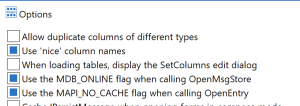
Toolsin the top menu and selectOptions. - Scroll down and check the following two options:
-
Use the MDB_ONLINE flag when calling OpenMsgStoreUse the MAPI_NO_CACHE flag when calling OpenEntry
-
- Click
OKto save the settings.
- Log In:
-
- Click on
Sessionin the top menu and selectLogon.... - Choose the Outlook profile that you want to work with and click
OK.
- Click on

-
- Access the Recoverable Items Folder:
-
- In the main window, double-click the
Mailboxentry for the mailbox you want to work with. - In the navigation pane on the left, expand the
Root Containernode.
- In the main window, double-click the

-
- Expand the
Top of Information Storenode. - Find and expand the
Recoverable Itemsnode. This folder might have subfolders such asDeletions,Purges,Versions, andDiscoveryHolds.
- Expand the

-
- Purging Items:
- Double click the subfolder from which you want to purge items (e.g.,
Deletions,Purges, etc.). - In the right-hand pane, you will see the items within the selected folder.
- To delete items, select them. You can select multiple items by holding down the
Ctrlkey and clicking on each item, or you can select all items by pressingCtrl + A. - Right-click the selected items and choose
Delete Message.
- Double click the subfolder from which you want to purge items (e.g.,
- Deleting with Hard Deletion:
- When you select
Delete Message, you will be prompted with different deletion options. - Choose
Permanent delete passing DELETE_HARD_DELETE (unrecoverable)if you want to ensure the items are completely purged and not recoverable.
- When you select
- Verify Deletion:
- After performing the deletion, you can refresh the view to ensure that the items have been purged. To refresh, press
F5or right-click in the pane and selectRefresh.
- After performing the deletion, you can refresh the view to ensure that the items have been purged. To refresh, press
- Close MFCMAPI:
- Once you have verified that the items are purged, you can close MFCMAPI.
Important Notes:
- Backup Data: Always ensure you have a backup of your data before performing deletions, as purging items with MFCMAPI can be irreversible.
- Permissions: Ensure you have the necessary permissions to access and modify the Recoverable Items folder.
- Caution: Be cautious when using MFCMAPI, as it provides low-level access to your mailbox and incorrect operations can cause data loss or corruption.
By following these steps, you should be able to successfully purge emails from the Recoverable Items folder using MFCMAPI.
Additional Reference:
- https://office365concepts.com/mfcmapi-purge-deleted-items/
- Demo Video: https://www.youtube.com/watch?v=FsUfKWqPvyE